Laser printers require regular cleaning to maintain print quality and extend their life. This guide provides practical, step-by-step instructions using common tools such as a laser printer cleaning kit and lint-free microfiber cloths, while highlighting when to seek professional help.
Readers will learn a straightforward process to remove dust, toner residue, and paper particles from internal components and exterior surfaces, with emphasis on safety and best practices for American homes and offices.
Quick Answer
For a quick clean, gather a laser printer cleaning kit, a lint-free microfiber cloth for laser printer maintenance, isopropyl alcohol wipes for laser printer cleaning, and a compressed air can for laser printer cleaning. Power off the printer, remove the toner cartridge, wipe exterior surfaces, lightly dust internal areas, and avoid touching rollers with bare fingers. Reassemble and test with a sample page.
What You’ll Need
- laser printer cleaning kit
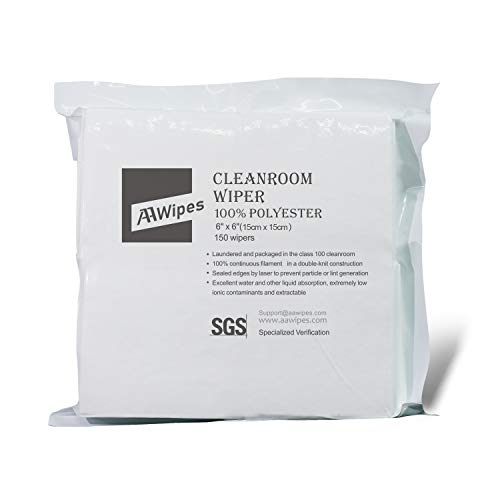
- lint-free microfiber cloth for laser printer maintenance
- isopropyl alcohol wipes for laser printer cleaning
- compressed air can for laser printer cleaning
- anti-static cleaning brush for electronics printers


Before You Start
Prepare a clean workspace, ideally on a non-carpeted surface. Power off the printer and unplug it before starting any cleaning. Allow any hot components to cool. Use low-pressure bursts of compressed air to avoid damage. Protect the interior by handling cartridges carefully and avoiding contact with the imaging drum. Budget 20–40 minutes for a thorough exterior and interior dusting.
Step-By-Step: How To Clean A Laser Printer
- Power off the printer and unplug from the electrical outlet.
- Open the printer and carefully remove the toner cartridge or imaging drum as instructed in the user manual.
- Wipe the exterior shell with a lint-free microfiber cloth, dampened lightly with isopropyl alcohol wipes if needed.
- Use a anti-static cleaning brush for electronics printers to gently sweep dust from accessible internal surfaces, avoiding rollers and fuser areas.
- Hold the compressed air can for laser printer cleaning upright and use short bursts to remove loose dust from interior components, never shaking the can.
- Inspect the paper path for debris and clear any small particles with a soft brush or cloth, avoiding toner spills.
- Wipe the toner cartridge or imaging drum with a dry, lint-free cloth; do not apply liquids directly to the drum.
- Reinstall the cartridge and reassemble the printer according to the manual. Do a test print on plain paper to verify print quality.
- If you notice streaks or smudges, repeat exterior cleaning and inspect for toner buildup along the roller surfaces.
- Store cleaning supplies in a cool, dry place and keep them away from direct sunlight.
- Document the cleaning date to establish a routine maintenance schedule.
- Discontinue cleaning if you encounter unusual noises, frequent jams, or chemical smells and contact support.
Troubleshooting
| Symptom | Likely Cause | Fix | Prevention |
|---|---|---|---|
| Smudges or streaks on prints | Toner residue buildup or dirty rollers | Clean exterior and rollers; inspect cartridge | Regular, gentle cleaning every few months |
| Paper jams for no obvious reason | Dust in paper path or damaged rollers | Clean path with microfiber cloth and brush | Use high-quality paper and keep area dust-free |
| Noises during operation | Loose components or improper reassembly | Power off, recheck parts, reseat cartridge | Follow manual during disassembly |
| Printer won’t power on | Electrical issue or blown fuse | Check power cable and outlet; seek service if needed | Avoid power surges and use surge protector |
Common Mistakes
- Using excessive liquid on the drum or interior components
- Directly spraying cleaning agents into the printer
- Removing components without consulting the manual, risking misalignment
- Over-tightening screws or forcing parts back into place
Sticking to manufacturer guidelines minimizes the risk of damage and helps maintain warranty coverage where applicable.
Tips For Best Results
- Clean on a cool, dry day to prevent moisture from affecting electronics.
- Keep a dedicated set of tools for printer maintenance to avoid cross-contamination with other electronics.
- Use a lint-free microfiber cloth rather than paper towels to reduce fibers left behind.
- Perform routine cleaning every 3–6 months based on usage and environment.
Call A Professional
Seek professional service if you notice persistent print defects after cleaning, recurring jams that do not respond to basic maintenance, or any signs of component damage such as strange noises, smoke, or unusual odors. Do not attempt internal repairs beyond basic exterior cleaning.
FAQ
How often should I clean a laser printer?
Clean exterior surfaces monthly and perform a deeper interior clean every 3–6 months, depending on usage and dust exposure.
Can I use household cleaners to wipe the printer?
Avoid household cleaners with harsh chemicals; use isopropyl alcohol wipes or a damp, lint-free cloth as specified by the manufacturer.
Is compressed air safe for all laser printers?
When used correctly in short bursts and from a distance, compressed air is generally safe for most printers; never shake the can or spray directly at rollers.
What should I do if toner leaks during cleaning?
Carefully contain the spill with a damp cloth, avoid inhalation, and consult the manual or customer support for cartridge replacement guidance.
Can I reuse a toner cartridge after cleaning?
Yes, as long as the cartridge remains within spec and no damage occurred during handling; replace if there are issues with toner distribution.
Should I clean the fuser unit?
Only if the manual directs it; improper handling of the fuser can cause damage and void warranties.
Is it OK to spray liquids directly onto components?
No. Always apply liquids to a cloth, not directly onto internal parts, to prevent liquid ingress.
Buying Guide
When choosing cleaning accessories for a laser printer, consider size, compatibility, and material quality. A complete kit may bundle a laser printer cleaning kit with microfiber cloths and anti-static brushes for comprehensive care. Pay attention to the construction of lint-free microfiber cloth for laser printer maintenance and ensure wipes are alcohol-based but lint-free. A reliable compressed air can for laser printer cleaning should have a safe nozzle and adjustable pressure. Finally, ensure the included anti-static cleaning brush for electronics printers is designed for delicate electronics to prevent static discharge and surface damage. For best results, match tools to your printer model and environment.